How to Build an AI FAQ Assistant With n8n and ChatGPT
If your business answers the same five questions every week, congratulations: you do not have a customer support problem.
You have an FAQ automation opportunity.
Customers ask the same things again and again:
- What time does it start?
- How much does it cost?
- Where are you based?
- Can I change my booking?
- Do you have spaces left?
- What should I bring?
- Do you offer refunds?
- Is this suitable for beginners?
- Can I speak to someone?
- Have you received my payment?
And every time, someone has to stop what they are doing and reply.
Usually with the same answer.
Usually while thinking:
“I swear I answered this yesterday.”
That is where an AI FAQ assistant becomes useful.
In this tutorial, we are going to build a simple AI FAQ assistant using n8n, ChatGPT/OpenAI and Google Sheets.
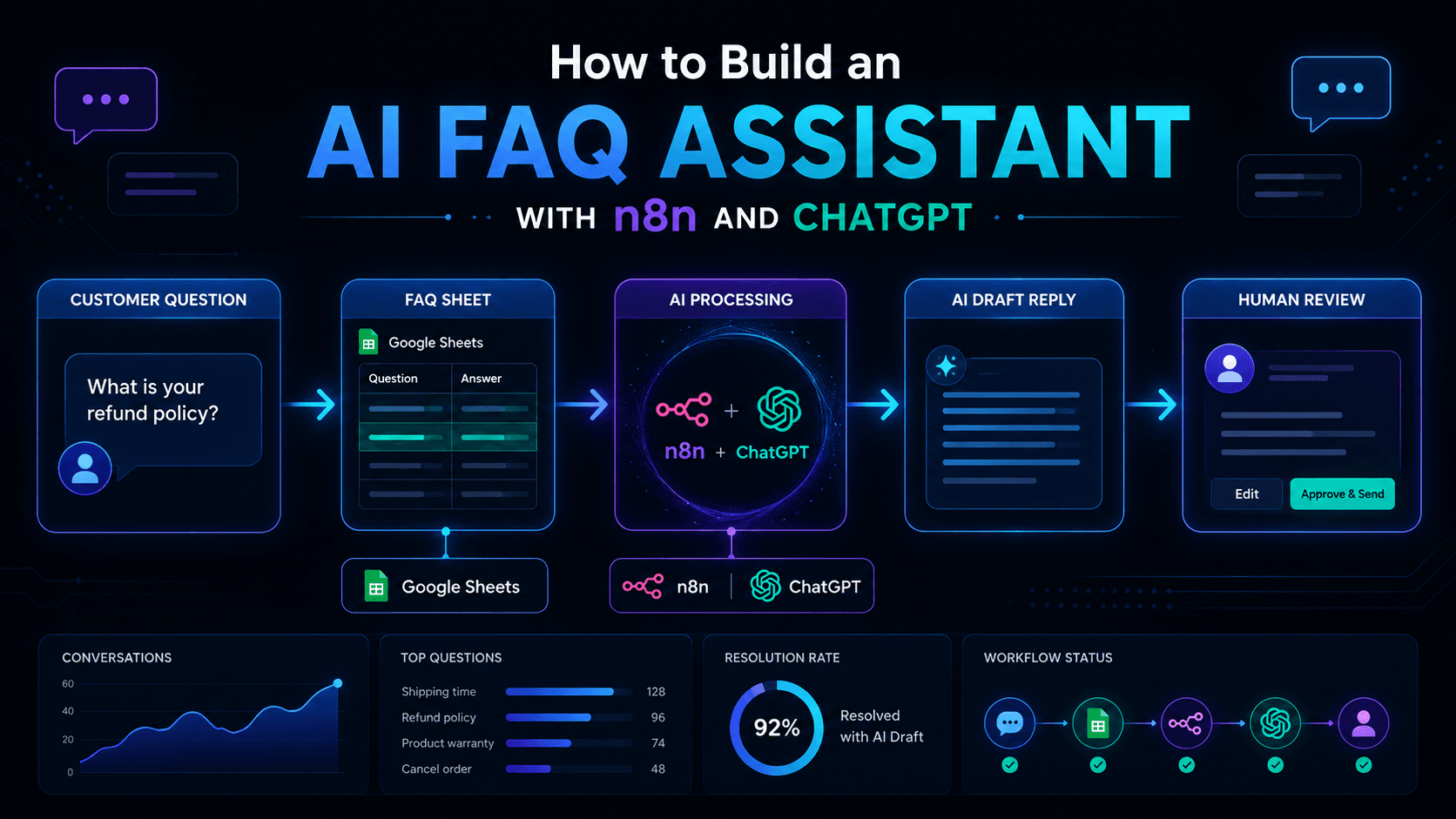
The workflow will take a customer question, check your FAQ information, ask AI to draft a helpful answer, and then send that draft to you for review.
Important: this beginner version will not automatically reply to customers.
That is deliberate.
AI should help you move faster, not start sending confident nonsense to customers while you are making a cup of tea.
The goal is simple:
Customer asks a question.
n8n checks your FAQ data.
ChatGPT drafts a helpful reply.
You review it before sending.
Useful. Safe. Practical.
No angry robots. No “autonomous customer service revolution”. No chatbot wandering off and inventing your refund policy.
What We Are Building
We are building an AI FAQ assistant that can help small businesses answer common customer questions using their own FAQ data.
The workflow will:
- Receive a customer question.
- Load FAQ information from Google Sheets.
- Send the customer question and FAQ data to ChatGPT.
- Ask AI to draft a clear answer.
- Add a confidence score.
- Decide whether the answer looks safe to use.
- Send the draft to you by email or Slack for review.
For the first version, we will use a Manual Trigger inside n8n so you can test the workflow safely.
Later, you can upgrade it with a webhook, contact form, Gmail trigger or even a WhatsApp-style support process.
If you are still new to n8n, start with What Is n8n and Why Should You Use It? before building this. If you want a simpler first AI workflow, read How to Build Your First AI Automation Workflow with n8n and ChatGPT.
This tutorial is the next step.
Still beginner-friendly.
Just a bit more useful.
Like going from “I made toast” to “I made toast and did not burn down the kitchen”.
Progress.
Why Build an AI FAQ Assistant?
Most small businesses do not need a giant customer support platform.
They need a better way to handle repetitive questions.
A simple AI FAQ assistant can help with:
- Customer support
- Workshop enquiries
- Course questions
- Booking questions
- Product FAQs
- Agency onboarding
- Client portal support
- Internal team questions
- SaaS helpdesk replies
- Local service business enquiries
The key is that the AI should answer using your information, not random internet energy.
That is the important part.
If you simply ask ChatGPT:
“Answer this customer question.”
It may produce something that sounds lovely but is completely wrong.
Very polite. Very confident. Very dangerous.
Instead, we want to give it your own FAQ data and say:
“Use this information only. If the answer is not in the FAQ, say that human review is needed.”
That makes the workflow safer.
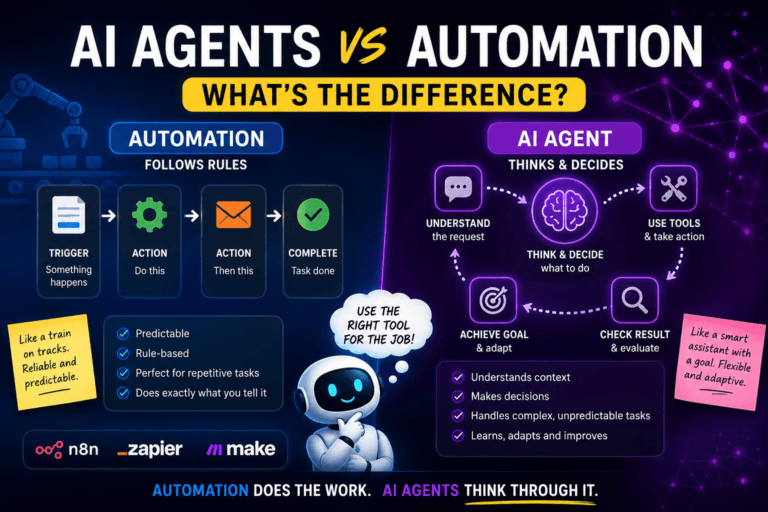
For more on when AI should make decisions and when it should simply assist, read AI Agents vs Automation: What’s the Difference?.
The short version is:
Automation handles the structure.
AI handles the messy language.
Humans handle judgement.
That is the sweet spot.
What You Need Before Starting
You will need:
- An n8n account or n8n instance
- A Google account
- A Google Sheet with FAQ data
- OpenAI or ChatGPT API access
- Gmail, Slack or another place to receive the draft answer
- Around 45–60 minutes
- A little patience
- Ideally, no desire to build a 47-step monster workflow on day one
The external tools used in this tutorial are:
- n8n
- Google Sheets
- OpenAI Platform
- Optional: Gmail or Slack
n8n has official documentation for the Google Sheets node, the OpenAI node and Gmail message operations.
You do not need to become an expert in all of them today.
Today we are building one useful workflow.
That is enough.
The Simple Workflow Structure
Here is the workflow we will build:
Manual Trigger
↓
Set Example Customer Question
↓
Google Sheets: Get FAQ Rows
↓
Prepare FAQ Context
↓
OpenAI / ChatGPT: Draft Answer
↓
IF Node: Check Confidence
↓
Send Draft for Review
That is the whole thing.
Not too scary.
No spaghetti automation.
No workflow diagram that looks like it was discovered in an abandoned spaceship.
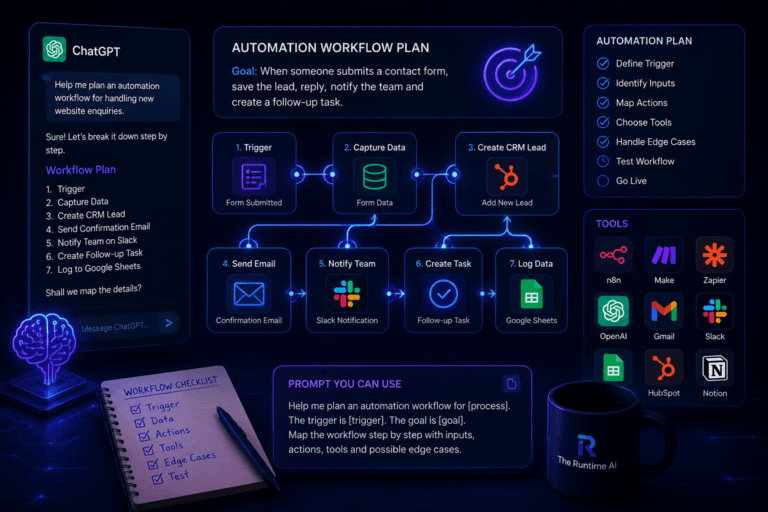
If you prefer to plan workflows before building them, read How to Use ChatGPT to Plan an Automation Workflow. It explains how to map triggers, inputs, outputs and edge cases before opening your automation tool.
That small planning step can save you a lot of pain later.
And by “pain”, I mean staring at an error message at 11pm wondering why your workflow is sending emails to yourself 37 times.
Step 1: Create Your FAQ Google Sheet
First, create a new Google Sheet.
Call it something like:
AI FAQ Assistant Knowledge Base
Add these columns:
Category
Question
Answer
Keywords
Last Updated
Then add some example rows.
Here is a simple example for a workshop or service business:
| Category | Question | Answer | Keywords | Last Updated |
|---|---|---|---|---|
| Opening Hours | What time does the workshop start? | Our workshops usually run from 9am to 3pm. Please check the specific booking page for exact dates and times. | time, start, finish, hours | 2026-07-20 |
| Location | Where are you based? | We are based at the location shown on the booking page. Please check your booking confirmation email for full address details. | location, address, where | 2026-07-20 |
| Bookings | Can I change my booking? | Booking changes may be possible depending on availability. Please contact us with your booking reference and preferred date. | change booking, reschedule, date | 2026-07-20 |
| Payments | How do I know if my payment worked? | If your payment was successful, you should receive a confirmation email. If you are unsure, please contact us with the email used for booking. | payment, paid, confirmation | 2026-07-20 |
| Refunds | Do you offer refunds? | Refunds depend on the terms shown at the time of booking. If you need help, contact us with your booking details. | refund, cancel, cancellation | 2026-07-20 |
This sheet is your mini knowledge base.
Keep the answers clear, accurate and short.
Do not write essays in the Answer column.
The AI assistant is not trying to become a Victorian novelist. It just needs enough information to answer properly.
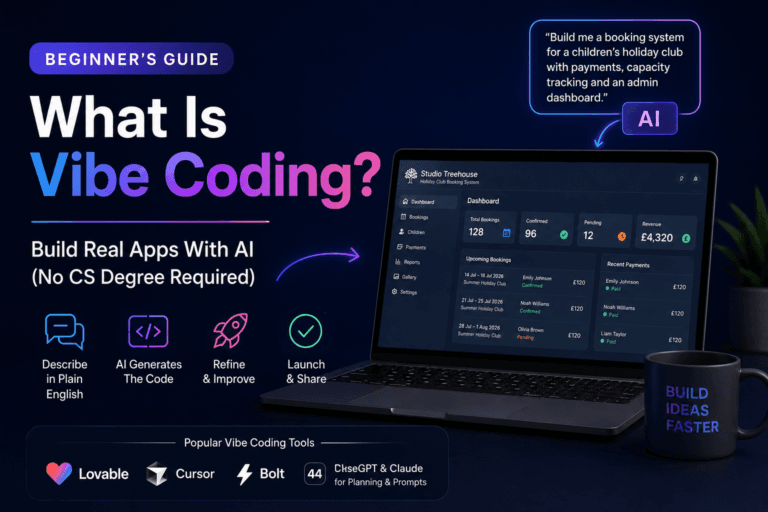
This idea also links nicely to the broader concept of building small internal tools with AI. If you are interested in that side of things, read What Is Vibe Coding? A Beginner’s Guide to Building Apps With AI.
An FAQ assistant could easily become part of a small client portal, admin dashboard or customer support system later.
But for now, start with the spreadsheet.
Very humble. Very useful.
Step 2: Create a New Workflow in n8n
Open n8n and create a new workflow.
Name it:
AI FAQ Assistant - Draft Customer Replies
Add your first node:
Manual Trigger
This lets you test the workflow by clicking a button.
Later, you can replace this with a webhook, form submission, Gmail trigger or chatbot input.
For now, Manual Trigger keeps things simple.
This is important because when you are building automations, simple is your friend.
Complexity is the friend who says “just one more feature” and then ruins your weekend.
Step 3: Add Example Customer Question Data
Add a new node after Manual Trigger.
Choose:
Set
or:
Edit Fields
depending on your n8n version.
Add these fields:
customer_name
customer_email
customer_question
source
Use example values like this:
customer_name: Sarah
customer_email: sarah@example.com
customer_question: Hi, I booked my child for the workshop but I think I selected the wrong date. Can I change the booking?
source: Website contact form
This gives the workflow something to process.
You can test with different questions later.
Try messy questions too. Customers are not robots. They do not write in neat database fields.
They write things like:
“Hi sorry quick one I think I booked the wrong thing can you help??”
Your workflow needs to handle that kind of message without immediately collapsing into a small digital heap.
Step 4: Connect Google Sheets to n8n
Now add a Google Sheets node.
Choose your Google Sheets credentials or connect your Google account.
Set it to read rows from your FAQ spreadsheet.
You want to retrieve the FAQ rows so the AI can use them as context.
Depending on your n8n setup, the operation may be something like:
Google Sheets → Get Many Rows
or:
Google Sheets → Read Rows
Select:
Document: AI FAQ Assistant Knowledge Base
Sheet: your FAQ sheet
Return all FAQ rows for this beginner version.
That is fine if your FAQ has 10–50 rows.
If your FAQ grows into hundreds or thousands of rows, you will eventually want a better search or retrieval setup. But for a beginner tutorial, loading the FAQ rows is good enough.
Do not build a vector database before you have five good FAQ answers.
That is like buying warehouse shelving before you own a cupboard.
Step 5: Prepare the FAQ Context
Now we need to turn the FAQ rows into a clean block of text that ChatGPT can understand.
Add a Code node or use a Set/Edit Fields node if you prefer a no-code approach.
The goal is to create something like this:
Category: Bookings
Question: Can I change my booking?
Answer: Booking changes may be possible depending on availability. Please contact us with your booking reference and preferred date.
Keywords: change booking, reschedule, date

Category: Payments
Question: How do I know if my payment worked?
Answer: If your payment was successful, you should receive a confirmation email. If you are unsure, please contact us with the email used for booking.
Keywords: payment, paid, confirmation
If you use a Code node, you can create a field called:
faq_context
The exact code depends on your n8n data structure, but conceptually it should combine each row into one text block.
If you do not want to use a Code node yet, you can keep things simpler:
- Send the Google Sheets rows directly into the OpenAI node.
- Use expressions to include the row data.
- Keep your FAQ sheet small while testing.
For beginners, the important part is not perfect formatting.
The important part is that ChatGPT receives:
- The customer question
- The FAQ information
- Clear instructions
That is what makes the assistant useful.
This is also the same basic pattern used in many AI automation workflows: collect input, provide context, ask AI to produce structured output, then decide what happens next.
That is why your earlier workflow from How to Build Your First AI Automation Workflow with n8n and ChatGPT is such a useful foundation.
Same idea.
More useful customer-support use case.
Step 6: Add the OpenAI / ChatGPT Node
Now add an OpenAI node.
Depending on your n8n version, this may appear as:
OpenAI
or as part of the LangChain/AI nodes.
Connect your OpenAI credentials.
Choose a chat-style operation where you can send instructions and receive a response.
Now we need to write the prompt.
This is the heart of the workflow.
A vague prompt gives you a vague assistant.
A clear prompt gives you something much more useful.
If you want a deeper framework, read Prompt Engineering for Beginners.
For now, use this prompt.
You are an AI FAQ assistant for a small business.

Your job is to draft helpful customer replies using only the FAQ information provided.

Customer question:
{{ $json.customer_question }}

FAQ information:
{{ $json.faq_context }}

Instructions:
- Use only the FAQ information provided.
- If the FAQ contains enough information, draft a clear and friendly answer.
- If the FAQ does not contain enough information, say that human review is needed.
- Do not invent policies, prices, dates, refunds, availability or guarantees.
- Do not make promises.
- Keep the tone friendly, natural and professional.
- Keep the answer short, unless more detail is genuinely needed.
- If information is missing, ask one useful follow-up question.

Return the answer in this JSON format:

{
  "confidence": "high | medium | low",
  "matched_category": "category name or unknown",
  "short_summary": "one sentence summary of the customer question",
  "draft_reply": "the reply you suggest sending",
  "needs_human_review": true,
  "reason": "brief reason for the confidence level"
}
This prompt matters because it gives the AI guardrails.
Especially this line:
Do not invent policies, prices, dates, refunds, availability or guarantees.
That line is doing a lot of work.
It is the difference between:
“Please contact us with your booking reference.”
and:
“Absolutely, your booking has been changed and we also now offer free unicorn parking.”
No thank you.
Step 7: Make the AI Output Structured
Ask the OpenAI node to return JSON if possible.
Structured output makes the next steps much easier.
You want fields like:
confidence
matched_category
short_summary
draft_reply
needs_human_review
reason
Example output:
{
  "confidence": "high",
  "matched_category": "Bookings",
  "short_summary": "The customer wants to change a booking date.",
  "draft_reply": "Hi Sarah, thanks for getting in touch. Booking changes may be possible depending on availability. Please send your booking reference and the date you would prefer, and we can check this for you.",
  "needs_human_review": true,
  "reason": "The FAQ contains a relevant booking-change answer, but availability still needs to be checked by a person."
}
This is exactly what we want.
The assistant gives you a useful draft.
It does not pretend it has changed the booking.
It does not promise availability.
It does not take action without approval.
Very civilised.
This is also where the difference between automation and agents becomes important. If the AI is only drafting an answer, the risk is lower. If it starts taking action, changing records or replying directly to customers, you need stronger checks.
For a deeper breakdown, read AI Agents vs Automation: What’s the Difference?.
Step 8: Add an IF Node for Confidence
Now add an IF node.
The goal is to check the AI confidence level.
Use logic like:
If confidence equals high
or:
If needs_human_review equals false
However, for this beginner version, I recommend always sending the draft for human review.
So why use an IF node?
Because it lets you separate high-confidence answers from low-confidence ones.
Example logic:
If confidence is high:
Send normal review email

If confidence is medium or low:
Send review email with warning
For low-confidence answers, your notification should say something like:
Human review required. The FAQ may not contain enough information to answer this safely.
That is useful.
AI should know when it does not know.
Unfortunately, AI is sometimes like that person in a meeting who answers every question with confidence, even when they clearly just learned the topic nine seconds ago.
The IF node helps you handle that.
Step 9: Send the Draft to Yourself for Review
Now add a Gmail, Slack or email node.
For beginners, Gmail is a simple option.
Use the Gmail node to send yourself the draft reply.
The message could look like this:
Subject:
FAQ Assistant Draft Reply - {{ matched_category }}

Body:
New customer question from {{ customer_name }}

Customer email:
{{ customer_email }}

Question:
{{ customer_question }}

AI confidence:
{{ confidence }}

Matched category:
{{ matched_category }}

Summary:
{{ short_summary }}

Suggested reply:
{{ draft_reply }}

Reason:
{{ reason }}

Please review before sending.
This gives you everything you need in one place.
You can then copy the draft, edit it and reply to the customer manually.
Later, you can improve the workflow so it creates a Gmail draft or waits for approval before sending. n8n’s Gmail message operations include ways to work with messages, so you can evolve this into a more advanced human-in-the-loop workflow later.
But for now:
AI drafts.
Human reviews.
Human sends.
That is a safe first version.
Not glamorous.
Very effective.
Step 10: Save the AI Result Back to Google Sheets
This step is optional, but useful.
Add another Google Sheets node to update or append a row with the AI output.
Save fields like:
customer_name
customer_email
customer_question
matched_category
confidence
short_summary
draft_reply
needs_human_review
date_processed
status
This gives you a record of what happened.
It also helps you improve your FAQ over time.
For example, if many questions come through with low confidence, that means your FAQ knowledge base is missing important information.
That is useful feedback.
Your customers are basically telling you what your FAQ page should include.
Less glamorous than analytics dashboards.
More useful than pretending every website visitor carefully reads all your pages before asking a question.
They do not.
Nobody does.
Step 11: Test With Realistic Questions
Now test the workflow.
Do not only test perfect examples.
Use messy examples.
Here are some good test questions.
Test 1: Booking change
Hi, I booked my son for Wednesday but I think I selected the wrong day. Can I move it to Thursday instead?
Expected result:
- Category: Bookings
- Confidence: Medium or high
- Reply should ask for booking reference and preferred date
- It should not promise the change is confirmed
Test 2: Payment confirmation
I paid earlier but I haven’t had an email. Did my booking go through?
Expected result:
- Category: Payments
- Confidence: Medium or high
- Reply should ask for the email used to book
- It should not claim payment was received unless the system checks payment data
Test 3: Question not in FAQ
Do you offer private one-to-one sessions on Sundays?
If your FAQ does not mention this, expected result:
- Confidence: Low
- Human review needed
- Reply should say you need to check
- It should not invent Sunday availability
Test 4: Vague question
Hi, can you help with my booking?
Expected result:
- Confidence: Low or medium
- Reply should ask for more details
- It should not guess the issue
Test 5: Refund question
Can I get a refund if we can’t attend?
Expected result:
- Category: Refunds
- Confidence depends on FAQ detail
- Reply should avoid inventing policy terms
- Human review likely needed
Testing is where you find the gaps.
If the assistant gives weak answers, do not immediately blame the AI.
Check your FAQ data first.
A bad knowledge base produces bad answers.
That is not artificial intelligence.
That is artificial confusion.
Step 12: Improve the FAQ Knowledge Base
After testing, update your Google Sheet.
Add missing questions.
Improve vague answers.
Add keywords.
Make policy answers clearer.
For example, instead of:
Refunds depend.
Write:
Refunds depend on the terms shown at the time of booking. Customers should contact us with their booking reference so we can review the request.
That gives the AI something safer to work with.
The better your FAQ sheet, the better your AI FAQ assistant becomes.
This is the part people forget.
They want a smarter AI, but sometimes what they really need is a clearer spreadsheet.
Not exciting.
Very true.
Step 13: Upgrade the Workflow Later
Once the manual version works, you can upgrade it.
Upgrade 1: Add a Webhook
Instead of manually typing questions, use a webhook.
A webhook can receive questions from:
- Website forms
- Chat widgets
- Landing pages
- Custom apps
- Client portals
- Internal tools
n8n’s Webhook node is useful when another service needs to send data into your workflow.
Upgrade 2: Add Gmail Trigger
You could trigger the workflow when a customer email arrives.
For example:
New Gmail message with label “FAQ”
↓
AI FAQ assistant drafts reply
↓
Send draft to you for review
This is useful if most questions come by email.
Upgrade 3: Add Slack Approval
You could send the draft to Slack and review it there.
Example:
Customer question received
↓
AI drafts reply
↓
Slack message sent to admin
↓
Admin reviews and sends manually
Upgrade 4: Add Gmail Draft Creation
Instead of only emailing yourself the draft, the workflow could create a Gmail draft.
Then you open Gmail, review the draft and send it.
This is a better human-in-the-loop setup.
Upgrade 5: Add a Real Knowledge Base
Google Sheets is fine for a beginner version.
Later, you could use:
- Airtable
- Notion
- Supabase
- A proper helpdesk knowledge base
- A vector database
- Website page content
If you are building app-style tools around this kind of workflow, read What Is Vibe Coding? A Beginner’s Guide to Building Apps With AI.
An FAQ assistant can easily become part of a client portal, support dashboard or small SaaS product.
If you are interested in turning workflow ideas into product ideas, read SaaS Ideas 2026: 7 Micro-SaaS Ideas Worth Building.
Common Mistakes to Avoid
1. Letting AI answer without your data
Do not ask AI to guess your business policies.
Give it your FAQ information.
2. Auto-sending replies too early
Start with drafts.
Review before sending.
Only automate sending when you trust the workflow and the risk is low.
3. Using vague FAQ answers
If your FAQ says “contact us for more info” 19 times, the AI will not magically become helpful.
It needs useful source material.
4. Forgetting human review
Human review is not a failure.
It is a safety feature.
Especially for bookings, payments, refunds, complaints and anything involving children, health, money or legal terms.
5. Not testing messy questions
Customers do not write perfect test data.
Use realistic examples.
Use weird examples.
Use short examples.
Use long examples.
Use the sort of messages people actually send when they are rushing between school pickup, work calls and wondering where they put their keys.
6. Overbuilding the first version
Do not start with WhatsApp, Slack, Gmail, CRM, vector database, AI agent, calendar integration and dashboard analytics.
Start with:
Question in.
FAQ checked.
Draft answer out.
Human reviews.
That is already useful.
Example Full Prompt for the AI FAQ Assistant
Here is a full prompt you can copy and adapt.
You are an AI FAQ assistant for a small business.

Your role is to draft helpful replies to customer questions using only the FAQ information provided.

Customer name:
{{ customer_name }}

Customer question:
{{ customer_question }}

FAQ information:
{{ faq_context }}

Rules:
- Use only the FAQ information provided.
- Do not invent policies, prices, dates, availability, refunds or guarantees.
- If the FAQ does not contain enough information, say human review is needed.
- If the question is unclear, ask one useful follow-up question.
- Keep the tone friendly, natural and professional.
- Keep the reply concise.
- Do not say you have checked a booking, payment or account unless that data is explicitly provided.
- Do not confirm changes, refunds or availability unless the FAQ clearly allows it.
- Always be honest about uncertainty.

Return valid JSON only:

{
  "confidence": "high | medium | low",
  "matched_category": "category name or unknown",
  "short_summary": "one sentence summary of the customer question",
  "draft_reply": "friendly draft reply",
  "needs_human_review": true,
  "reason": "brief explanation of confidence level"
}
This prompt is intentionally cautious.
That is good.
The goal is not to make the AI sound impressive.
The goal is to make it useful without causing trouble.
There is a difference.
A very important one.
Example Final Workflow
Your final beginner workflow should look like this:
Manual Trigger
↓
Set Example Question
↓
Google Sheets: Read FAQ rows
↓
Prepare FAQ context
↓
OpenAI: Draft FAQ answer
↓
IF: Check confidence
↓
Gmail or Slack: Send draft for review
↓
Google Sheets: Save AI output
This is a proper AI FAQ assistant.
Simple enough to build.
Useful enough to matter.
Safe enough that it will not start inventing opening hours like a caffeinated intern.
When Should You Use This?
Use this workflow if your business gets repeat questions about:
- Bookings
- Opening hours
- Pricing
- Refunds
- Services
- Location
- Availability
- Onboarding
- Course access
- Delivery
- Support issues
- Client processes
It is especially useful for small businesses where support is handled by the owner or a small team.
Because when you are small, every repeated question costs attention.
And attention is expensive.
Even if nobody puts it on the invoice.
This also connects nicely with broader small-business automation ideas. For more examples, read AI Automation Ideas for Small Businesses: 10 Practical Workflows You Can Build.
Final Thoughts
An AI FAQ assistant is one of the most practical AI automations you can build.
It is not about replacing customer support.
It is about making customer support easier, faster and more consistent.
The best version is not fully autonomous on day one.
The best version is:
AI reads the question.
AI checks your FAQ.
AI drafts a reply.
You review it.
The customer gets a better answer faster.
That is useful.
That is safe.
That is exactly where AI automation makes sense.
Start with a small FAQ sheet.
Build the workflow manually.
Test it with messy questions.
Improve your answers.
Then connect it to real customer channels when you trust it.
And the next time someone asks the same question for the 47th time, you will not need to sigh into your keyboard.
Your AI FAQ assistant will already have a draft ready.
Very polite.
Very organised.
Still supervised.
Exactly how we like it.
The Runtime AI covers practical AI automation, workflow systems, SaaS and vibe coding for people who actually build things. For more practical guides, read AI Agents vs Automation: What’s the Difference?, How to Build Your First AI Automation Workflow with n8n and ChatGPT and How to Use ChatGPT to Plan an Automation Workflow.