How to Use ChatGPT to Plan an Automation Workflow
Why You Should Plan Before You Automate
If you want to plan an automation workflow properly, ChatGPT can help you turn a messy idea into a clear step-by-step process before you open n8n, Zapier or Make.
Opening n8n, Zapier or Make before planning your workflow is a bit like buying IKEA furniture and throwing the instructions away.
You might still get there eventually.
But there is a strong chance you will end up with three spare parts, a headache, and something that looks almost right.
That is why planning matters.
A good automation does not start with a tool.
It starts with a clear process.
Before you build anything, you need to understand:
- What starts the workflow
- What information is needed
- What should happen next
- Which tools are involved
- What could go wrong
- What the final result should look like
This is where a ChatGPT automation workflow can help.
Not because ChatGPT magically builds everything for you.
But because it can help you think through the process before you start clicking buttons and connecting nodes like a confused octopus.
The Biggest Automation Mistake Beginners Make
Most beginners start with the tool.
They open n8n, Zapier or Make and think:
“Right, what should I connect first?”
That sounds logical, but it usually creates messy workflows.
The better question is:
“What is the process I am trying to improve?”
Automation is not about connecting apps for the sake of it.
Automation is about taking a repetitive process and making it easier, faster or more reliable.
For example, this is not a clear automation idea:
“I want to automate my emails.”
That is too vague.
This is better:
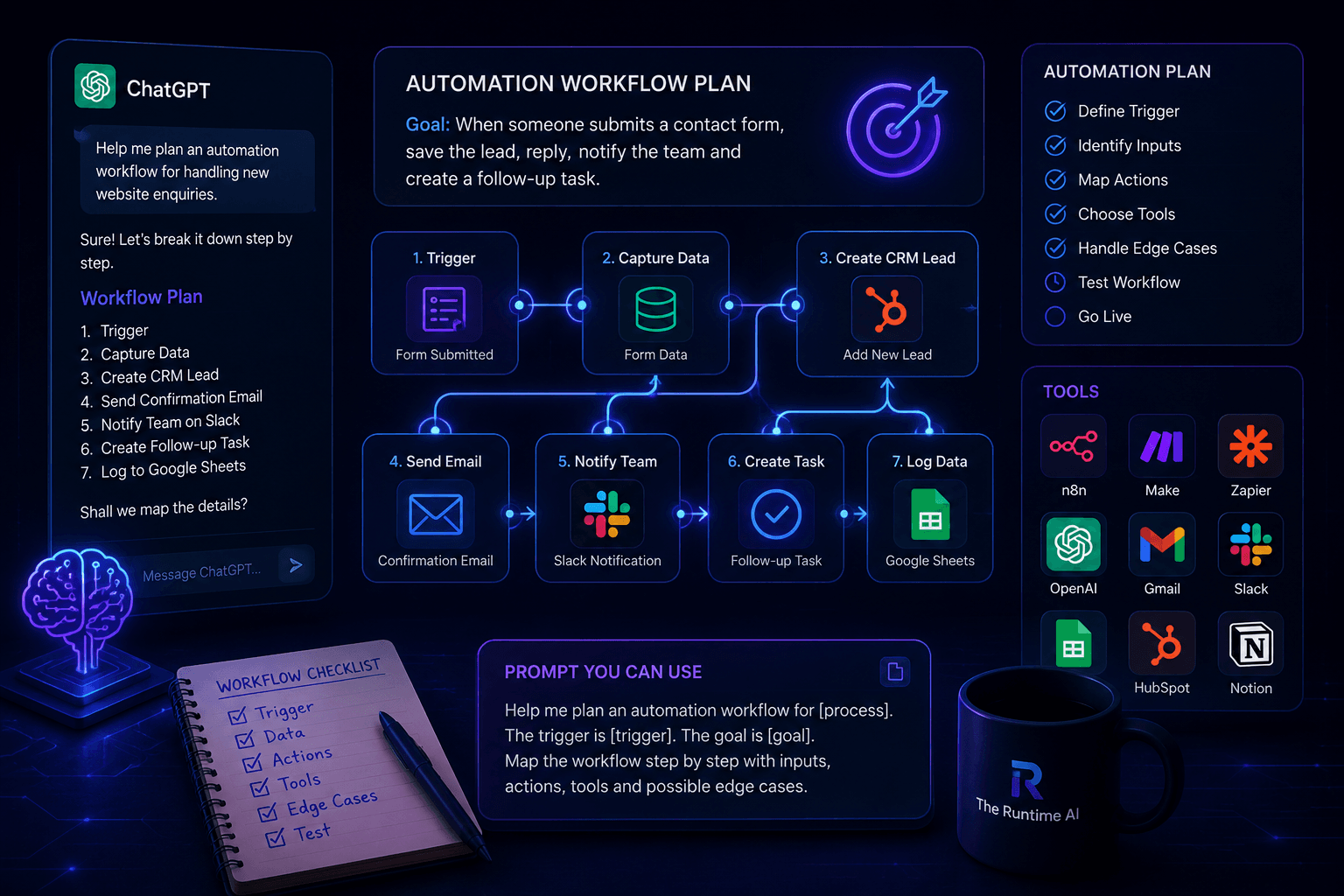
“When someone fills in my website contact form, I want to save their details in a CRM, send them a confirmation email, notify me in Slack and create a follow-up task.”
Now we have something real.
We have a trigger.
We have actions.
We have tools.
We have a clear result.
That is the difference between a random automation idea and a workflow plan.
What ChatGPT Is Good At During Automation Planning
ChatGPT is useful before the build because it can help you turn a messy idea into a structured workflow.
It can help you:
- Map the current manual process
- Find repetitive steps
- Define the trigger
- List the data you need
- Suggest the workflow steps
- Spot missing logic
- Think through edge cases
- Compare tool options
- Write better prompts for n8n, Zapier or Make
- Create documentation for the workflow
The key is to use ChatGPT as a planning assistant.
Not as a magic button.
If you tell ChatGPT:
“Build me an automation.”
You will probably get a generic answer.
If you tell it:
“Help me plan an automation workflow for handling new website enquiries. Ask me questions first, then map the trigger, inputs, actions, tools, edge cases and final output.”
That is much better.
Step 1: Start With the Manual Process
Before you automate anything, describe how the process works today.
This sounds boring, but it is one of the most important steps.
If you do not understand the manual process, you cannot automate it properly.
For example, imagine you currently handle website enquiries like this:
- Someone fills in a contact form.
- You receive an email.
- You read the message.
- You decide if it is a serious lead.
- You copy the details into a spreadsheet.
- You reply manually.
- You set a reminder to follow up.
- Sometimes you forget the reminder because life happens.
That is the real workflow.
Not the polished version.
The messy version.
The one where emails get buried, spreadsheets get forgotten, and “I’ll reply later” becomes a small historical event.
You can give this process to ChatGPT and ask it to clean it up.
Use this prompt:
“Help me map this manual process into a clear automation workflow. First summarise the current process. Then identify which steps are repetitive, which steps require human judgement, and which steps can be automated.”
Then paste your process.
This helps you see what should and should not be automated.
Step 2: Define the Trigger
Every automation needs a trigger.
The trigger is the event that starts the workflow.
Without a trigger, there is no automation.
There is just an idea floating around wearing a tiny productivity hat.
Common triggers include:
- A form is submitted
- A new email arrives
- A new row is added to a spreadsheet
- A payment is completed
- A calendar event is created
- A file is uploaded
- A new lead is added to a CRM
- A new booking is created
- A Slack message is posted
- A webhook is received
A clear trigger makes the workflow easier to build.
Weak trigger:
“When something happens with a customer.”
Better trigger:
“When a new contact form submission is received from the website.”
Even better:
“When a new website enquiry form is submitted with name, email, phone number, message and service interest.”
The more specific you are, the easier the workflow becomes.
Prompt to use:
“Based on this process, what should the automation trigger be? Give me the best trigger, alternative trigger options, and explain which one is most reliable.”
Step 3: Define the Inputs
Inputs are the pieces of information the workflow needs.
For a website enquiry workflow, inputs might be:
- Name
- Email address
- Phone number
- Message
- Service interest
- Source page
- Date submitted
- Consent checkbox
- Company name
- Budget range
For a booking workflow, inputs might be:
- Parent name
- Parent email
- Child name
- Booking date
- Number of children
- Payment amount
- Payment status
- Booking reference
This matters because automation depends on data.
If the workflow does not receive the right data, it cannot do the right job.
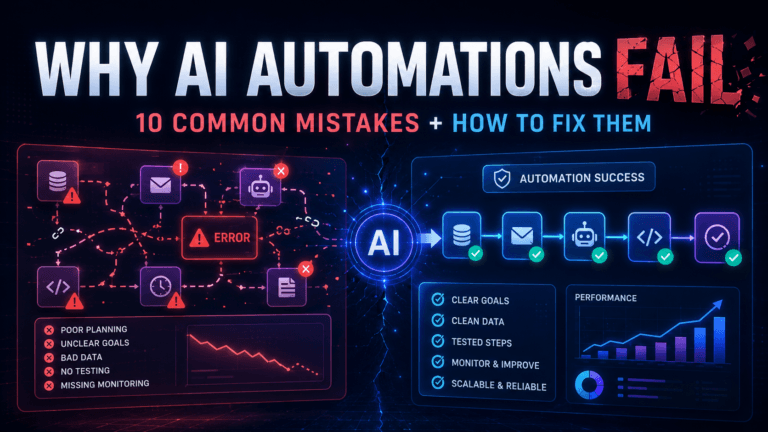
This is where many automations fail.
People build the workflow first and then realise they do not have half the data they need.
That is like trying to cook dinner and discovering the only ingredient in the fridge is disappointment.
Use this prompt:
“List all the data inputs this automation needs. For each input, explain where it should come from, whether it is required or optional, and what could go wrong if it is missing.”
Step 4: Define the Outputs
Outputs are what the workflow should produce.
For example:
- A new CRM record
- A confirmation email
- A Slack notification
- A Google Sheet row
- A task in Notion or Trello
- A payment confirmation
- A booking status update
- A summary report
- A follow-up reminder
- A classified lead score
A good workflow has a clear final result.
Bad workflow goal:
“Automate enquiries.”
Better workflow goal:
“When someone submits the website enquiry form, create a CRM lead, send a confirmation email, notify the team in Slack and create a follow-up task for the next working day.”
Now we know exactly what should happen.
Use this prompt:
“Based on this workflow, what should the final outputs be? Separate them into customer-facing outputs, internal admin outputs and optional reporting outputs.”
Step 5: Decide What Should Stay Human
Not everything should be automated.
This is important.
Some steps are perfect for automation.
Others need human judgement.
For example, automation can:
- Save lead details
- Send confirmation emails
- Create tasks
- Notify your team
- Add tags
- Update statuses
- Generate summaries
- Route enquiries
But a human may still need to:
- Handle sensitive questions
- Reply to complex enquiries
- Approve quotes
- Deal with complaints
- Make final decisions
- Check unusual requests
Good automation removes repetitive work.
Bad automation removes judgement.
And that is how you end up with a bot confidently sending the wrong email to the wrong person at the wrong time.
Very efficient.
Very terrible.
Use this prompt:
“Review this process and tell me which steps should be automated and which should stay human. Explain the reason for each decision.”
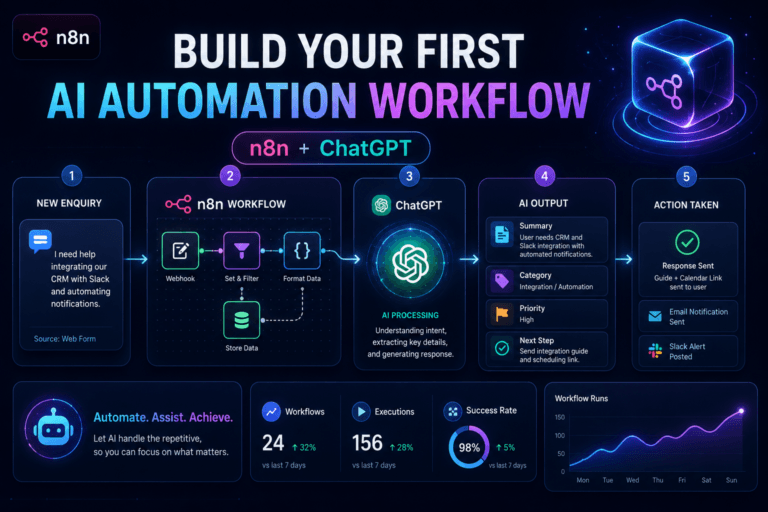
Step 6: Ask ChatGPT to Map the Workflow
This is one of the easiest ways to plan an automation workflow without missing important steps.
Once you know the trigger, inputs and outputs, ask ChatGPT to map the workflow step by step.
Use this prompt:
“Create a step-by-step automation workflow from this process. Include the trigger, each action, the app or tool involved, the data passed between steps, and the expected result.”
Example output might look like this:
- Trigger: Website form submitted
- Capture form data
- Validate required fields
- Create lead in CRM
- Send confirmation email to the user
- Send Slack notification to the team
- Create follow-up task
- Add lead to newsletter list if consent was given
- Log the submission in Google Sheets
- End workflow
This is much easier to build than a vague idea.
You can now take this into n8n, Zapier or Make and build it step by step.
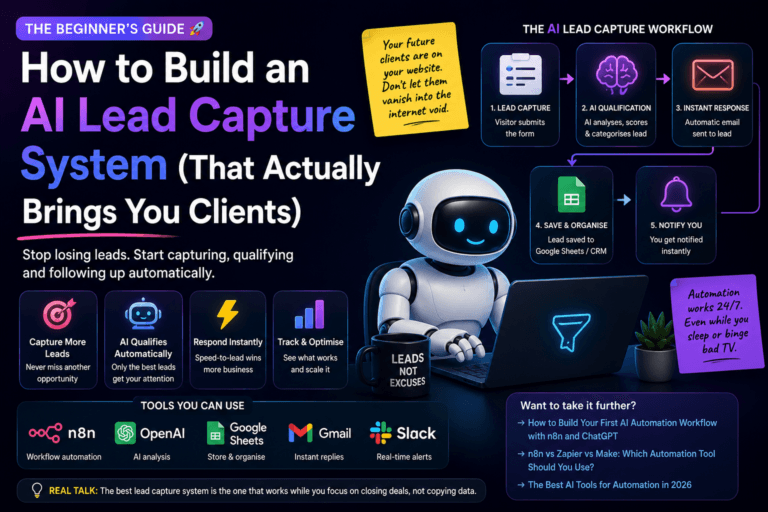
Example 1: Website Enquiry to CRM Follow-Up
Let’s make this practical.
Imagine you have a website and people can submit enquiries.
The old manual process:
- You receive an email
- You read the enquiry
- You decide if it is useful
- You copy the details somewhere
- You reply manually
- You try to remember to follow up
The improved workflow:
- User submits contact form.
- Automation captures the form data.
- The lead is saved in a CRM.
- ChatGPT summarises the enquiry.
- ChatGPT classifies the enquiry as sales, support, partnership or other.
- A Slack notification is sent to you.
- A follow-up task is created.
- The user receives a confirmation email.
This is a strong automation because it saves time without removing the human completely.
You still decide how to reply.
But the admin work is handled.
Prompt to plan it:
“Help me design an automation workflow for website enquiries. When someone submits a contact form, I want to save the lead in a CRM, summarise the message with ChatGPT, classify the enquiry, send myself a Slack notification and create a follow-up task. Include the trigger, required data, tools, workflow steps and edge cases.”
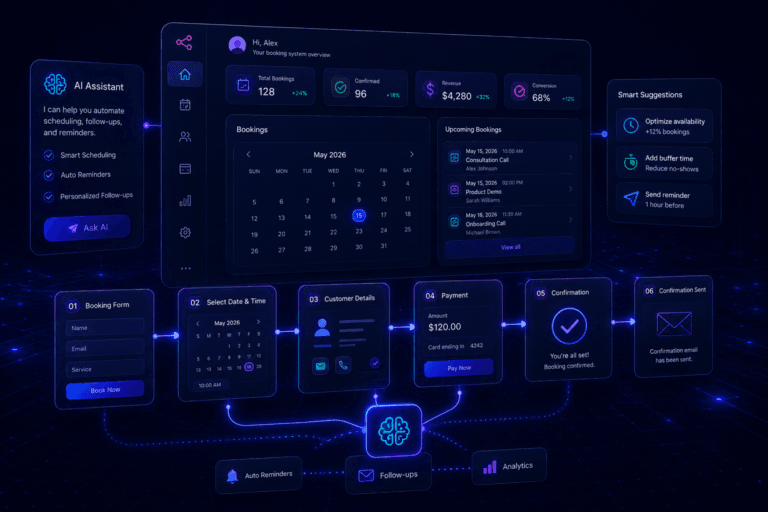
Example 2: Booking Confirmation Workflow
This example connects nicely to a real booking system.
Imagine someone books a workshop through a website.
The workflow could be:
- Parent submits booking details.
- Booking is created as pending.
- Parent completes payment.
- Payment provider confirms payment.
- Booking status changes to confirmed.
- Parent receives a confirmation email.
- Admin receives a notification.
- Capacity is updated.
- Booking appears in the admin dashboard.
- Booking can be exported later.
This sounds simple, but there are hidden details.
What happens if payment fails?
What happens if payment succeeds but the email fails?
What happens if two people try to book the last space?
What happens if the parent enters the wrong email?
What happens if the payment provider sends the same webhook twice?
This is where ChatGPT helps.
Use this prompt:
“Review this booking confirmation workflow and list all the edge cases I should consider before building it. Include payment failures, duplicate submissions, email failures, capacity problems and admin issues.”
This is useful because it forces you to think beyond the happy path.
The happy path is easy.
The edge cases are where systems either become reliable or start behaving like they were assembled during a power cut.
Example 3: Content Publishing Workflow
You can also use ChatGPT to plan your own blog workflow.
For example, The Runtime AI publishing workflow could look like this:
- Choose a keyword.
- Create article outline.
- Draft article.
- Add examples and internal links.
- Create featured image.
- Add SEO title and meta description.
- Add excerpt.
- Check Rank Math.
- Publish article.
- Submit URL to Google Search Console.
- Share or repurpose content later.
This can become an automation checklist.
You could use ChatGPT to generate the draft, but also to create the publishing checklist.
Prompt:
“Help me create a repeatable blog publishing workflow for a WordPress site. Include keyword research, article outline, writing, internal links, featured image, Rank Math setup, publishing, cache purge and Search Console indexing.”
This makes publishing more consistent.
And consistency matters.
Because if every article is published differently, future-you will eventually open WordPress and wonder who made all these decisions.
Spoiler: it was past-you.
Past-you is not always helpful.
Step 7: Choose the Right Tool
Once the workflow is mapped, then you choose the tool.
Not before.
Popular options include:
- n8n
- Zapier
- Make
- Power Automate
- Airtable
- Notion
- Google Sheets
- Supabase
- Slack
- Gmail
- Outlook
- Webhooks
- ChatGPT or other AI models
The right tool depends on the workflow.
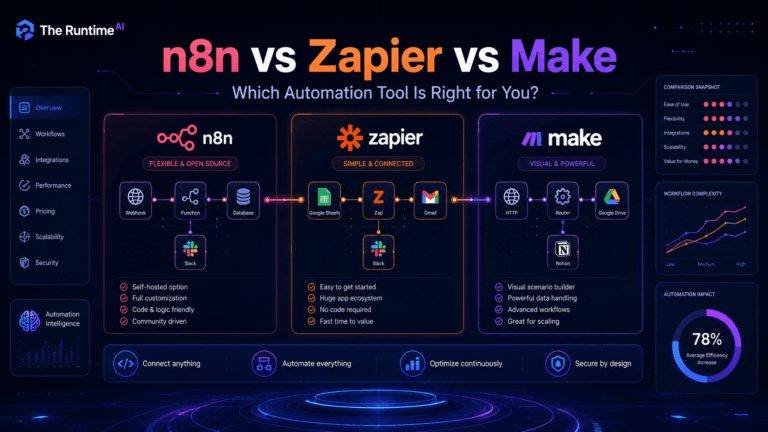
Use n8n if you want more control, flexible logic and technical workflows.
Use Zapier if you want simple app-to-app automation.
Use Make if you want visual workflow building with more flexibility than basic automation.
Use Power Automate if your business already lives inside Microsoft 365.
Use Supabase if you need a proper backend database.
Use Airtable if you want a spreadsheet-style database that is easy to manage.
ChatGPT can help you compare options.
Prompt:
“Based on this workflow, suggest the best automation tool. Compare n8n, Zapier and Make. Explain which one is easiest, which one is most flexible and which one gives the best long-term control.”
Step 8: Think About Edge Cases
Edge cases are the things that happen when the workflow does not go perfectly.
And workflows rarely go perfectly forever.
Examples:
- Form data is missing
- Email address is invalid
- Payment fails
- API is down
- Duplicate submission happens
- User submits the same form twice
- Slack notification fails
- CRM field is missing
- AI classification is wrong
- A webhook fires twice
- A task is created for the wrong person
These are not fun to think about.
But they are much less fun when a real customer is involved.
Use this prompt:
“List the possible failure points in this automation workflow. For each one, explain how to detect the problem, what should happen next, and whether the workflow should retry, stop or notify a human.”
This helps you build workflows that are more reliable.
Not perfect.
Just less likely to explode quietly in the background.
Step 9: Create a Build Plan to Plan an Automation Workflow
Once the workflow is clear, ask ChatGPT to turn it into a build plan.
Prompt:
“Turn this workflow into a build plan for n8n. Include each node, what it does, what data it receives, what data it sends, and how to test each step.”
Example output:
- Node 1: Webhook trigger
- Node 2: Validate required fields
- Node 3: Create CRM record
- Node 4: ChatGPT summary
- Node 5: Send Slack notification
- Node 6: Send confirmation email
- Node 7: Create follow-up task
- Node 8: Error handling notification
This gives you a blueprint.
Then you can build one step at a time.
Do not try to build the whole thing in one go.
That is how you end up staring at a broken workflow at midnight, wondering whether the problem is the webhook, the JSON, the API key or your life choices.
Build small.
Test often.
Step 10: Ask ChatGPT to Create Test Cases
Testing is where many beginners skip ahead.
Do not skip testing.
A workflow is not finished when it works once.
It is finished when it works reliably.
Ask ChatGPT to create test cases.
Prompt:
“Create test cases for this automation workflow. Include normal cases, missing data, invalid email, duplicate submission, failed payment, API failure and successful completion. Present the result as a checklist.”
Example test cases:
- Submit a valid form
- Submit form without email
- Submit form with invalid email
- Submit duplicate form
- Simulate failed payment
- Simulate successful payment
- Check CRM record
- Check confirmation email
- Check admin notification
- Check error handling
This makes your automation safer.
It also makes you look much more organised than you may actually feel.
That is fine.
Systems are partly there to compensate for our very human ability to forget things.
Prompt Templates You Can Use
Here are reusable prompts you can copy and adapt.
Automation Discovery Prompt
“Act as an automation consultant. Help me identify automation opportunities in this process. First summarise the current manual workflow. Then identify repetitive steps, human decision points, required data, possible tools and the best first automation to build.”
Workflow Planning Prompt
“Help me plan an automation workflow for [process]. The trigger is [trigger]. The desired result is [result]. The tools involved are [tools]. Map the workflow step by step, including inputs, outputs, actions and possible failure points.”
Trigger and Data Prompt
“Review this automation idea and define the best trigger, required input data, optional data, output data and any missing information I should collect before building.”
Edge Case Prompt
“List all edge cases for this automation workflow. Include missing data, duplicate submissions, failed API calls, payment issues, email delivery problems and cases where a human should be notified.”
n8n Build Plan Prompt
“Turn this automation workflow into an n8n build plan. List each node, what it does, what data it receives, what data it outputs, and how I should test it before moving to the next node.”
Zapier or Make Build Plan Prompt
“Turn this automation workflow into a Zapier or Make build plan. Include the trigger app, action apps, filters, conditions, error handling and testing steps.”
AI Step Prompt
“Where could AI add value in this workflow? Suggest useful AI steps such as classification, summarisation, extraction, rewriting, scoring or routing. Explain which AI steps are useful and which ones are unnecessary.”
Testing Prompt
“Create a testing checklist for this automation workflow. Include happy path tests, missing data tests, duplicate tests, failure tests and final user experience checks.”
Documentation Prompt
“Create simple documentation for this automation workflow. Include what it does, when it runs, tools used, data passed between steps, known limitations, how to test it and what to do if it fails.”
When Not to Use AI in a Workflow
AI is useful, but it does not need to be everywhere.
Sometimes a simple rule is better.
For example, if you need to route enquiries based on a dropdown field, you may not need AI.
If the form has:
- Sales
- Support
- Billing
- Partnership
You can route based on that field directly.
No AI needed.
AI becomes useful when the input is messy or unstructured.
For example:
- A long customer message
- A support ticket
- A meeting transcript
- A free-text enquiry
- A document summary
- A messy email thread
- A natural language request
Use AI where judgement, language or interpretation is needed.
Use simple automation where the logic is already clear.
This keeps workflows faster, cheaper and more reliable.
A Simple Checklist Before You Build
Before opening n8n, Zapier or Make, answer these questions:
- What process am I trying to improve?
- What starts the workflow?
- What data do I need?
- Where does the data come from?
- What should happen first?
- What should happen next?
- What tools are involved?
- What should the final output be?
- What happens if something fails?
- What should stay human?
- How will I test it?
- How will I know it is working?
If you cannot answer these yet, you are not ready to build.
That is not a problem.
It just means you are still planning.
And planning is cheaper than fixing a broken workflow later.
Final Thoughts
The best way to plan an automation workflow is to slow down first, map the process clearly, and only then start building.
ChatGPT is not just useful for writing emails or asking random questions at 11 p.m.
It can help you plan better automation workflows.
The trick is to use it before you build.
Use ChatGPT to map the process, define the trigger, list the required data, choose the right tools, identify edge cases and create a build plan.
Then take that plan into n8n, Zapier, Make or whatever tool fits the job.
That is how you move from:
“I want to automate something.”
to:
“I know exactly what this workflow should do.”
And that is where automation becomes useful.
Not because it looks clever.
Not because it has 47 nodes and a diagram that looks like a subway map.
But because it removes repetitive work, reduces mistakes and gives you a process you can trust.
Start simple.
Map the workflow.
Test each step.
Then improve it over time.